How to Set Up IPTV on Smart TV in 2026: Complete Step-by-Step Guide
Introduction
"I have a Smart TV and an IPTV subscription. How do I actually get IPTV working?"
If you are asking this question, you are not alone. Setting up a new service on your television can sometimes feel like trying to assemble furniture without instructions. However, the basic process is much simpler than it seems.
To get started, you will generally follow a straightforward process:
- Check Smart TV compatibility.
- Choose a compatible IPTV player.
- Install the player from your television's application store.
- Add the IPTV credentials or playlist.
- Add the EPG (Electronic Program Guide) where supported.
- Load the playlist.
- Test a channel.
- Start watching.
Whether you are using a Samsung, LG, Sony, or an Android TV, this guide will walk you through everything you need to know. We will also show you how the Flash4K IPTV service fits perfectly into a modern home entertainment setup.
Stream 2026 NFL Games in 4K & 60FPS
Get instant access to over 50,000 live sports channels, 120,000+ movies & series, and 24/7 priority sports coverage across all your favorite devices.
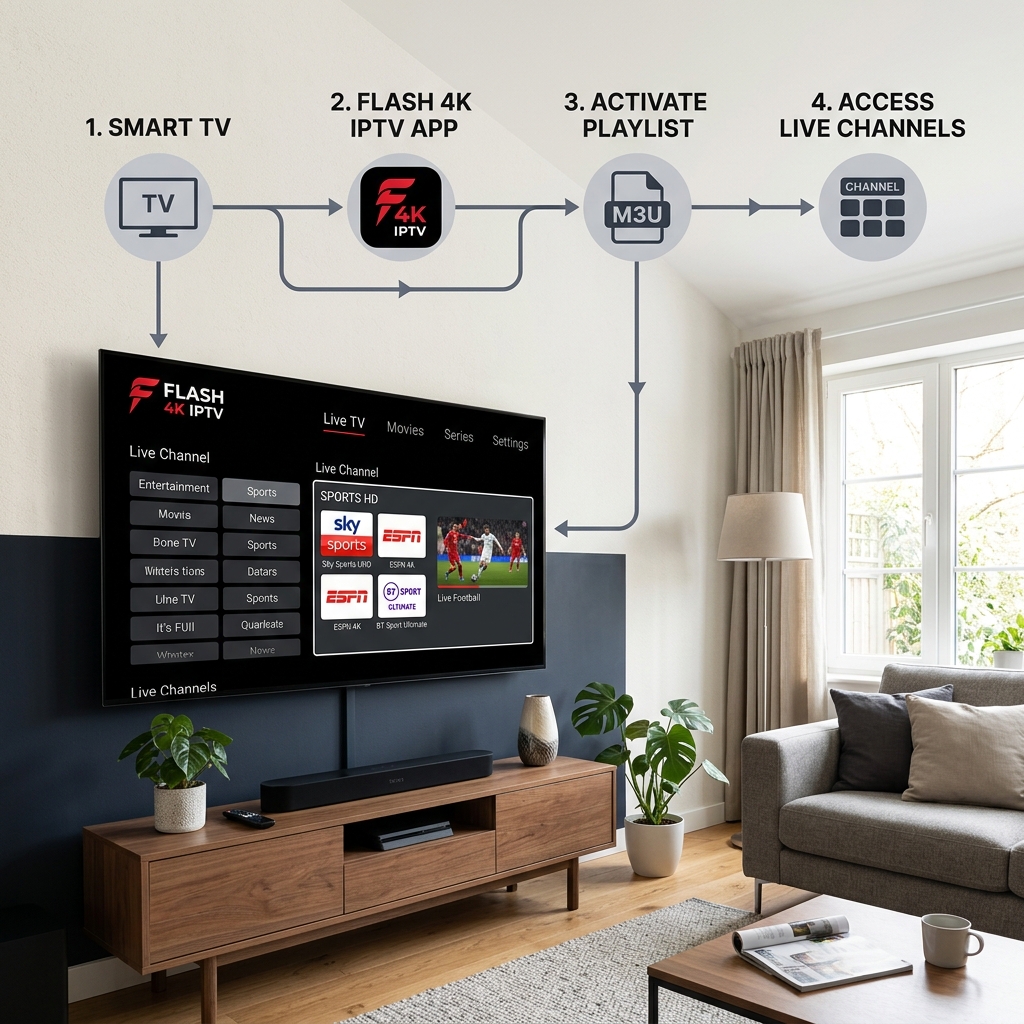
Quick Start: IPTV Smart TV Setup
For those who want to jump straight in, here is the basic workflow:
Smart TV ↓ Internet connection ↓ IPTV player ↓ Flash4K IPTV credentials ↓ M3U / supported login method ↓ EPG if available ↓ Load playlist ↓ Live channels
If any of these terms are unfamiliar, do not worry—we will explain each step in detail below.
What You Need Before Setting Up IPTV
Before diving into menus and settings, make sure you have the following ready:
- A compatible Smart TV: Most modern screens support IPTV applications.
- Stable internet connection: A strong Wi-Fi or Ethernet connection is crucial.
- IPTV player: You will need to choose and install one (we’ll explain how).
- Active IPTV subscription: You must have an active plan with a provider like Flash4K IPTV.
- Login credentials or playlist information: This is usually provided via email when you sign up.
- M3U URL or Xtream Codes: Depending on the player, you will use one of these to log in.
- EPG URL: Used for the program guide, if applicable.
- TV remote: For navigating your screen's menus.
Which Smart TVs Can Run IPTV?
Most modern Smart TVs can run IPTV applications, but app availability depends heavily on the operating system, model, region, and what is currently listed in the brand’s app store.
- Samsung Smart TVs: These run the Tizen operating system and generally support many popular players.
- LG Smart TVs: Operating on webOS, LG TVs also have a solid selection of compatible applications.
- Sony Smart TVs: Most modern Sony screens use Android TV or Google TV, offering vast app flexibility.
- Android TV & Google TV: These operating systems have access to the Google Play Store, providing the widest range of options.
It is important to remember that not every IPTV application works on every Smart TV. If you cannot find a specific player, search for alternatives within your store.
Step 1: Choose an IPTV Player
An IPTV player is the application used to load and play your IPTV playlists or login information. Think of it as an empty media player—it does not provide content itself; it merely plays the content your provider supplies.
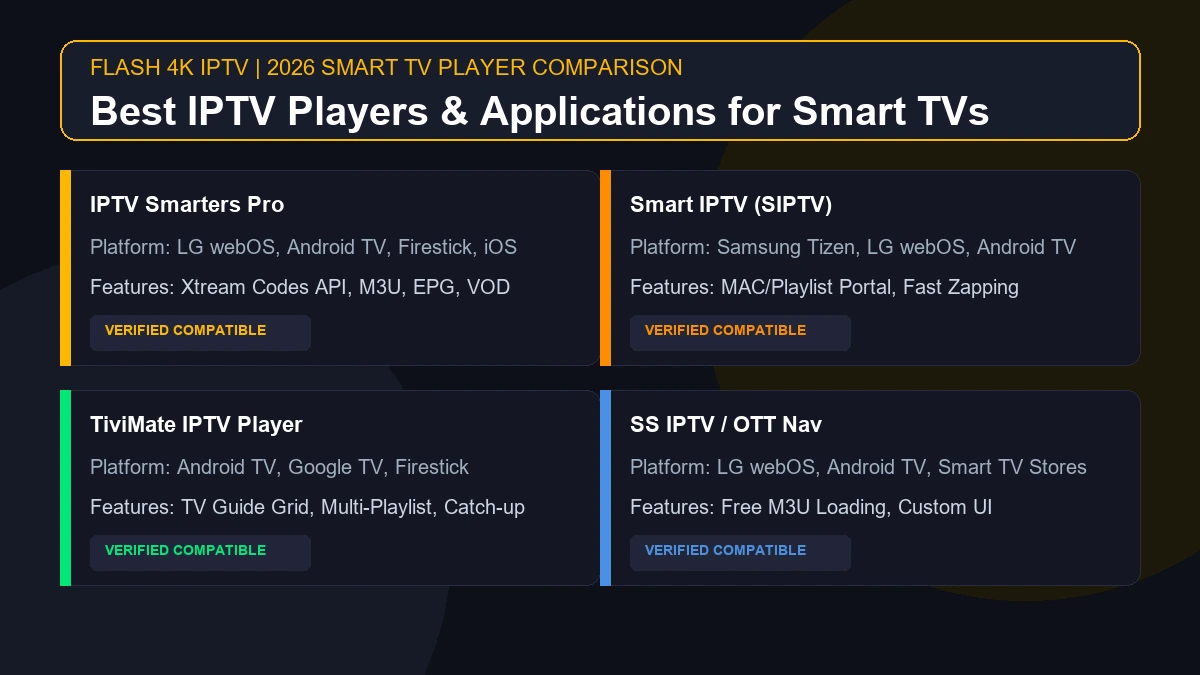
Different Smart TV platforms offer different applications. For example, if you are setting up your service using our IPTV setup guide, you might use players like IPTV Smarters, TiviMate, or Smart ONE IPTV.
Always check your TV’s native app store to see which players are available and verified.
Step 2: Install the IPTV App on Your Smart TV
Once you know which player you want, the general installation process is:
- Open your TV's application store (e.g., Google Play Store, LG Content Store, or Samsung Apps).
- Search for the selected IPTV player using the search bar.
- Open the application page.
- Select "Install" or "Download."
- Launch the application once the installation is complete.
Menu names can vary by TV model, but this core process remains the same across brands.
How to Set Up IPTV on Samsung Smart TV
If you own a Samsung Smart TV, here is how you generally get started based on our installation guidelines:
- Press the "Smart Hub" or "Home" button on your remote.
- Open the Apps section (the Samsung app store).
- Use the magnifying glass icon to find a compatible IPTV player (e.g., Smart ONE IPTV or IPTV Smarters).
- Install the player and open the application.
- You will usually be prompted to add your IPTV playlist or login information.
- Enter the credentials supplied by your provider.
- Save the configuration and allow the app to process.
- Load the channels and test playback.
How to Set Up IPTV on LG Smart TV
For LG Smart TV owners using webOS, the steps are very similar:
- Press the "Home" button on the Magic Remote.
- Navigate to the LG Content Store (or "Apps" on newer models).
- Search for a compatible IPTV player.
- Install and open the application.
- Add the supplied IPTV login information or M3U link.
- Save your settings.
- Wait for the channels to load.
- Select a channel to test playback.
How to Set Up IPTV on Sony Smart TV
Sony televisions use different operating systems depending on the model and year. Most modern Sony TVs use Android TV or Google TV.
For Android/Google TV models:
- Navigate to the Google Play Store from your home screen.
- Search for a compatible IPTV player (like TiviMate or XCIPTV).
- Install the player and open it.
- Enter the supported IPTV credentials provided in your welcome email.
- Load the playlist.
- Test a channel to ensure everything is working correctly.
How to Set Up IPTV on Android TV and Google TV
If you are using a generic Android TV box, a Google Chromecast with Google TV, or any device running the Android TV OS, you have the greatest flexibility.
- Open the Google Play Store.
- Search for the chosen compatible IPTV player.
- Install the application and open it.
- Add your IPTV credentials (either via M3U URL or Xtream Codes).
- Load the playlist.
- Test playback by selecting a live channel.
Step 3: Add Your M3U Playlist
An M3U playlist is essentially a digital text file containing links to thousands of live streams and on-demand videos. It is commonly used to provide a list of IPTV streams to a compatible player.
Here is the general process to add it:
- Open your chosen IPTV player.
- Select the option to "Add a Playlist" or "Add User."
- Choose "M3U URL" if the option is available.
- Enter the exact URL supplied by your provider.
- Give the playlist a name (e.g., "Flash4K IPTV") if required.
- Save the settings.
- Wait for the channels to load (this can take a few minutes depending on your internet and the playlist size).
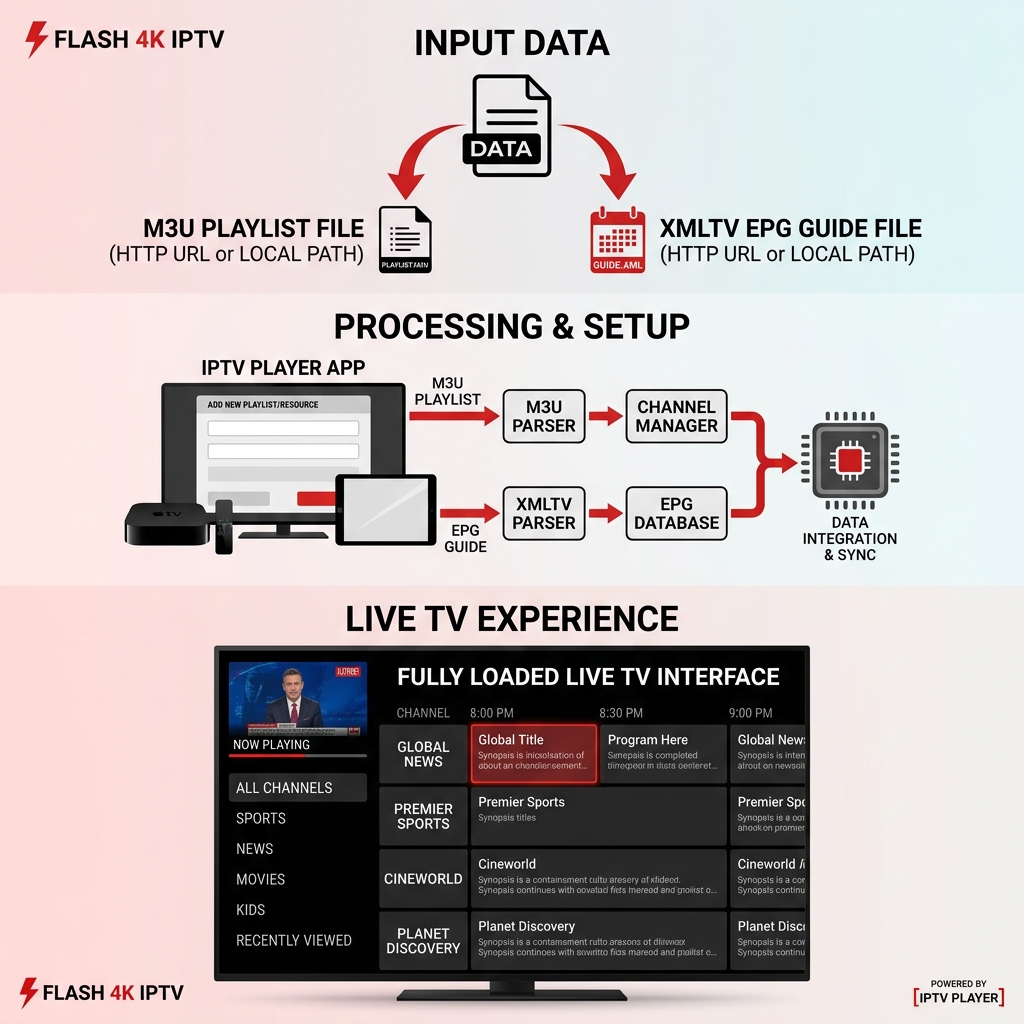 M3U playlist and EPG setup for IPTV on Smart TV
Step 4: Set Up IPTV With Xtream Codes
Some IPTV players support the Xtream Codes API, which is often much easier to type with a TV remote than a long M3U URL.
Typical fields usually include:
- Server/Portal URL: The address of the server.
- Username: Your unique login name.
- Password: Your secret password.
The exact layout of these fields depends entirely on the IPTV player you are using. Simply enter the details provided when you purchased your Flash4K IPTV package and click "Add User" or "Login."
Step 5: Add the EPG Guide
EPG stands for Electronic Program Guide. It is the digital menu that shows you program names, schedules, and what is coming up next, making channel navigation much easier.
If you logged in using Xtream Codes, the EPG usually loads automatically. If you used an M3U URL, you may need to add a separate EPG URL in the player's settings.
EPG availability and setup depend entirely on the IPTV player you are using. While highly recommended for a better experience, EPG is not mandatory for video playback.
Step 6: Load Your IPTV Channels
Once you have entered your details:
- Save the playlist or login information.
- Wait for the application to process and download the channel list.
- If necessary, select "Refresh" or "Reload."
- Open the "Live TV" section.
- Browse through the available categories (e.g., Sports, News, Movies).
- Select a channel to view.
Loading times can vary depending on your network speed and the processing power of your Smart TV.
Stream 2026 NFL Games in 4K & 60FPS
Get instant access to over 50,000 live sports channels, 120,000+ movies & series, and 24/7 priority sports coverage across all your favorite devices.
Step 7: Start Watching IPTV
Now that everything is loaded, you can start watching. While player interfaces differ, you can generally:
- Open the Live TV category menu.
- Browse channels by region or genre.
- Select a channel to view it in full screen.
- Press the "Up" or "Down" buttons to switch channels.
- Open the EPG to see what is playing later.
- Press the "Back" or "Return" button to go back to the main playlist.
How Fast Should Your Internet Be for IPTV?
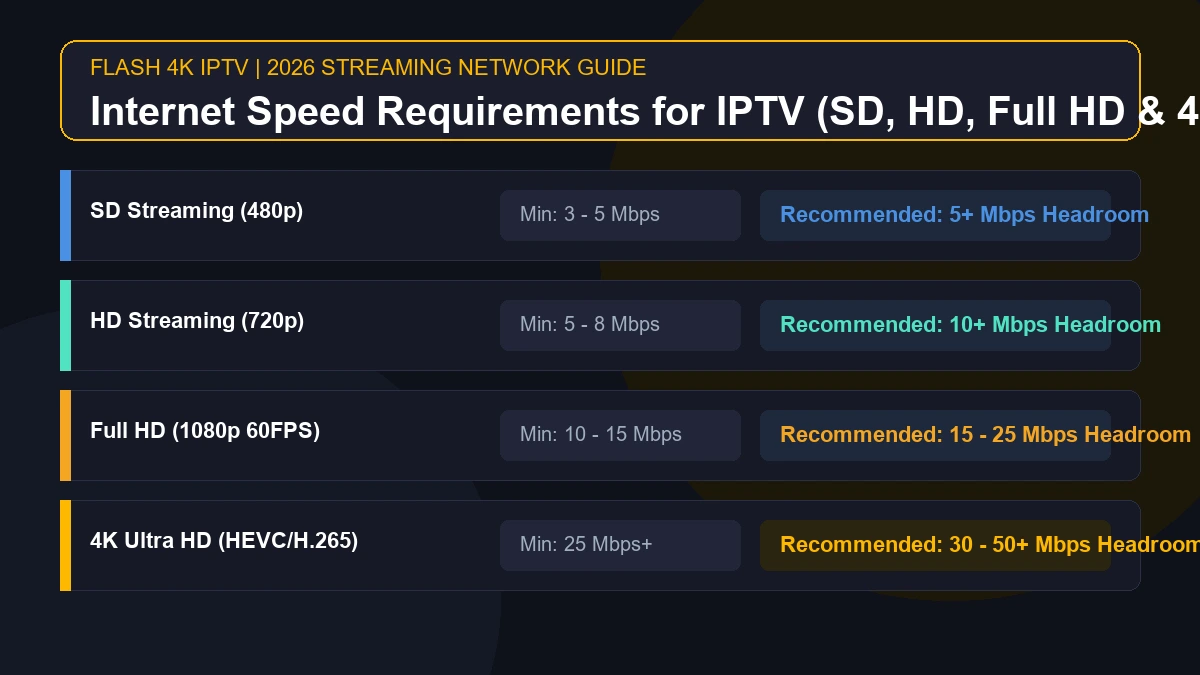
Streaming live television requires a stable and reasonably fast connection. Here are practical recommendations based on stream quality:
| Quality | Practical Recommended Speed |
|---|---|
| SD | 5 Mbps+ |
| HD | 10 Mbps+ |
| Full HD | 15 Mbps+ |
| 4K | 25 Mbps+ |
These are practical recommendations, not universal requirements. Keep in mind that stream bitrates vary, and connection stability is often more important than raw speed. If other devices in your home are downloading large files, it will consume bandwidth and affect your stream. Device performance also plays a significant role.
For more details on connection requirements, check out our guide on how IPTV works.
Wi-Fi or Ethernet for IPTV: Which Is Better?
When connecting your Smart TV to your home network, you have two main options:
Wi-Fi
- Pros: Convenient and easy to use without running cables across your living room.
- Cons: Can be affected by walls, distance, and interference from other electronics. Performance can fluctuate, which may cause sudden buffering during live sports.
Ethernet
- Pros: A wired connection provides the most consistent, stable internet feed. It is far less affected by interference and is highly recommended for troubleshooting network issues.
- Cons: Requires a physical cable running from your router to your television.
While Ethernet is highly recommended for the best experience, it is not mandatory. Many users enjoy perfect streaming over a strong 5GHz Wi-Fi signal.
How to Optimize IPTV on Your Smart TV
To get the absolute best performance from your television, follow these optimization tips:
- Keep your TV software updated to the latest version.
- Keep your IPTV player updated.
- Use a stable internet connection.
- Prefer Ethernet when convenient.
- Restart your TV (unplug it from the wall for 60 seconds) when troubleshooting.
- Close unnecessary background applications.
- Keep enough storage space available on the TV for app cache.
- Ensure the TV is properly ventilated to prevent overheating.
- Avoid heavy background network activity on other devices while watching live sports.
- Choose an appropriate streaming quality that matches your connection speed.
Common IPTV Smart TV Setup Problems
If things do not go perfectly on the first try, do not panic. Here are some common problems and their likely causes.
IPTV App Cannot Be Found
- The app may be unavailable on your specific TV platform.
- There could be region restrictions in the app store.
- Your TV model might not be compatible.
IPTV Playlist Will Not Load
- You may have entered an incorrect URL (watch out for typos).
- Your credentials might be incorrect or expired.
- There could be a temporary network issue.
- The specific player might have compatibility issues with the playlist format.
EPG Is Empty
- You may have entered incorrect EPG information.
- The player might be struggling to process a massive EPG file.
- There could be a temporary loading issue.
- There might be an EPG mapping problem.
Channels Load but Do Not Play
If you can see the channel list but the video won't load, you may need to check your network, try restarting your device, or test a different channel. If you need help diagnosing specific playback errors, you can read our guide on why channels won't load and how to fix it.
IPTV Buffers
If the video constantly pauses to load, you are experiencing buffering. You can find detailed solutions in our IPTV buffering guide.
IPTV Smart TV Setup Troubleshooting Checklist
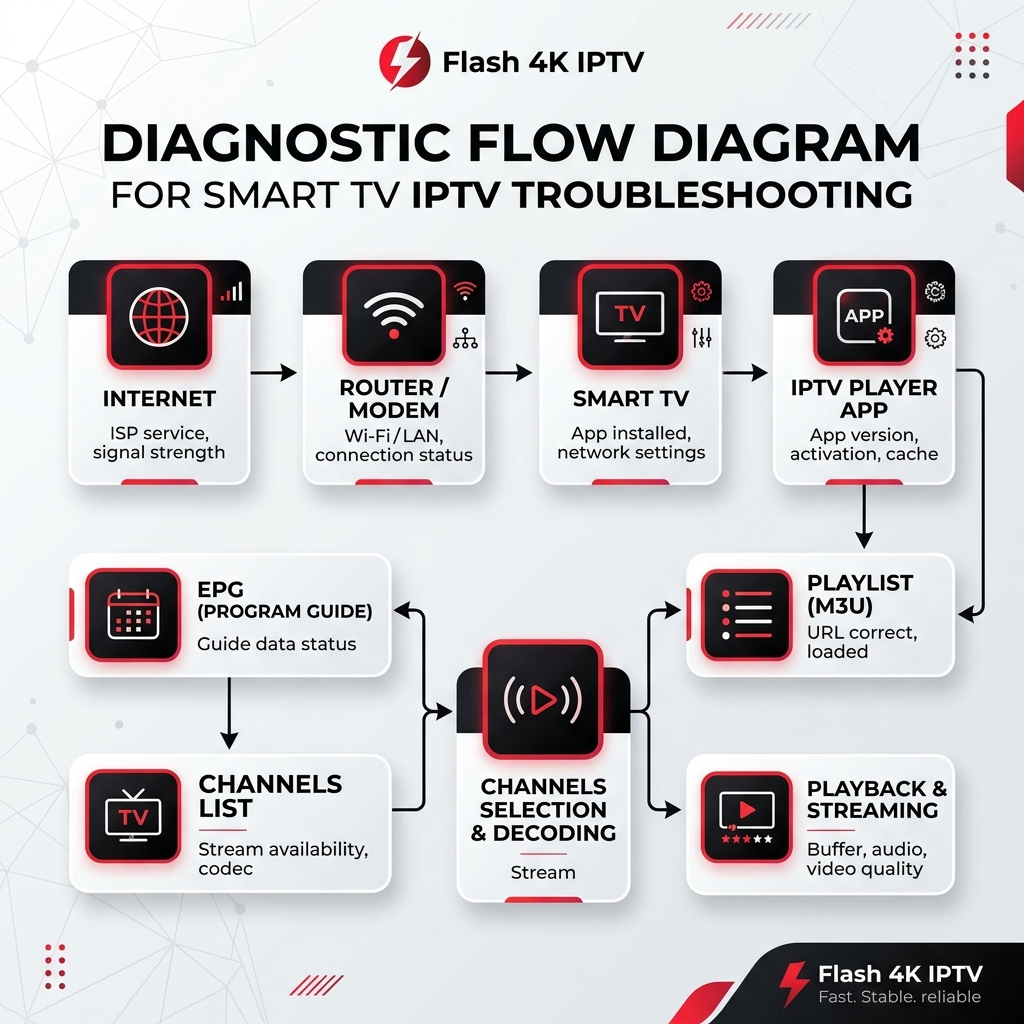 Flash4K IPTV Smart TV setup and troubleshooting guide
If you are stuck, run through this quick checklist:
- Check your internet connection (run a speed test on the TV).
- Confirm the IPTV app is actually compatible with your TV model.
- Verify your login information carefully.
- Verify the playlist URL (check for extra spaces or typos).
- Verify the EPG information if applicable.
- Restart the IPTV app completely.
- Restart the Smart TV.
- Restart your home router.
- Test another channel to see if the issue is isolated.
- Test another compatible player.
- Update the IPTV app.
- Update your TV software.
- Test an Ethernet connection if available.
- Contact Flash4K IPTV support if the problem persists and you are an active subscriber.
Setting Up Flash4K IPTV on Your Smart TV
When you choose to set up your television with the Flash4K IPTV service, the process is designed to be as smooth as possible.
When you activate your subscription, you will receive a welcome email containing your unique login credentials. This typically includes an M3U URL and Xtream Codes API details. You simply need to download one of the supported players mentioned in our installation guide, enter the information exactly as it appears in the email, and load the playlist.
Once loaded, you can browse through carefully organized categories, load the EPG to see schedules, and begin watching high-quality live TV and sports directly on your Smart TV screen.
Frequently Asked Questions
Final Thoughts
Setting up IPTV on your Smart TV is a simple process once you understand the basic steps: confirm your TV's compatibility, install a supported player, add your supplied credentials, load the EPG, and start watching. While technical issues like buffering or app availability can occasionally arise, they are usually quickly resolved by checking your network or trying an alternative application.
If you are looking for a reliable provider to enhance your home entertainment, the Flash4K IPTV service offers a premium experience tailored for Smart TVs, ensuring you never miss your favorite live broadcasts or sporting events.
Ready to get started? Explore our pricing plans today and transform your Smart TV experience.