IPTV Keeps Freezing: Causes and Complete Fixes
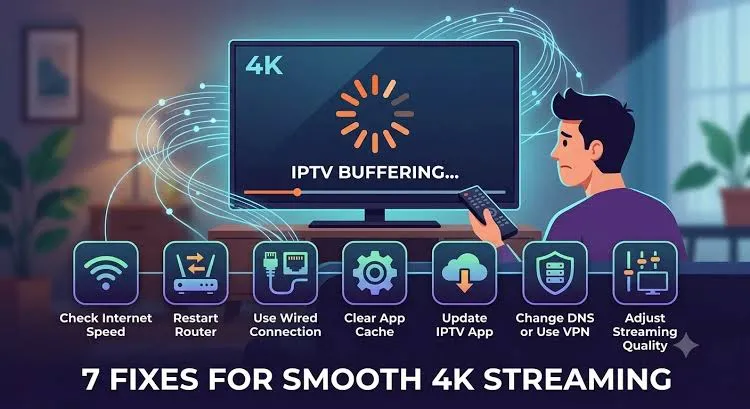
Few things are as frustrating as sitting down to watch a highly anticipated live sports event, a premium movie, or a breaking news broadcast, only to have your screen suddenly freeze. If your IPTV stream repeatedly pauses, stutters, or stops entirely during playback, you are not alone.
However, repeated freezing does not always mean the IPTV service itself is the problem. Video playback interruptions can originate from multiple points along the chain: your internet connection, wireless interference, device performance, the specific IPTV application, or indeed, the provider's server.
Before you assume your service is broken or rush out to buy a new streaming device, you should troubleshoot the problem systematically. In this comprehensive guide, we will break down exactly why IPTV keeps freezing and walk you through a step-by-step process to diagnose and fix the issue.
Stream 2026 NFL Games in 4K & 60FPS
Get instant access to over 50,000 live sports channels, 120,000+ movies & series, and 24/7 priority sports coverage across all your favorite devices.
1. What Does IPTV Freezing Mean?
Before we begin troubleshooting, it is important to identify the exact symptom you are experiencing.
Freezing generally means the video picture completely stops or temporarily stalls, while the audio might continue playing in the background. In some cases, the entire stream disconnects. This is slightly different from other common playback issues:
- Buffering: A loading circle appears on the screen as your device waits for more video data to download from the internet.
- Stuttering / Frame Drops: The video appears choppy or "jumps" forward, usually caused by a struggling device processor.
- No Signal / Channel Not Loading: The stream refuses to start at all.
- Complete App Crash: The application closes unexpectedly and returns you to the home screen.
While the causes of these symptoms often overlap, understanding exactly how your stream is failing helps isolate whether the problem is your network, your hardware, or the provider.
2. Why Does IPTV Keep Freezing?
There is no single cause for a freezing stream. A smooth live TV experience requires a perfect handoff of data from the source to your screen. When IPTV keeps freezing, the most common culprits include:
- Unstable internet connection: Your internet drops packets or fluctuates in speed.
- Weak Wi-Fi signal: Wireless interference disrupts the video data.
- Network congestion: Other devices on your network are consuming too much bandwidth.
- Too many connected devices: Your router is overwhelmed by traffic.
- Slow internet speed: Your total bandwidth is insufficient for the stream's resolution.
- Router problems: Hardware fatigue or overheating in your networking equipment.
- IPTV app issues: Software bugs or corrupt cache files in your player.
- Outdated device software: Your streaming device needs a firmware update.
- Device performance limitations: Your device lacks the processing power to decode high-bitrate video.
- High-resolution streams (4K): The data load is simply too high for your current setup.
- Provider/server-side problems: The IPTV service's servers are overloaded.
- Stream source issues: The original broadcast feed is experiencing technical difficulties.
- VPN-related performance problems: Your VPN is routing traffic inefficiently.
- Incorrect app settings: Your player's hardware decoder or buffer settings are misconfigured.
- Temporary network outages: Your ISP is performing maintenance.
To fix the freezing, we will start with the easiest and most common user-side checks before looking at provider-side issues.
3. Test Your Internet Connection
The very first step in troubleshooting any IPTV freezing issue is verifying your network health.
Many users assume that because they pay for a "1 Gigabit" internet plan, their network cannot possibly be the problem. However, internet speed alone does not tell the whole story. Live video streaming requires a stable connection just as much as a fast one.
Run a speed test on the exact device experiencing the freezing. Check for:
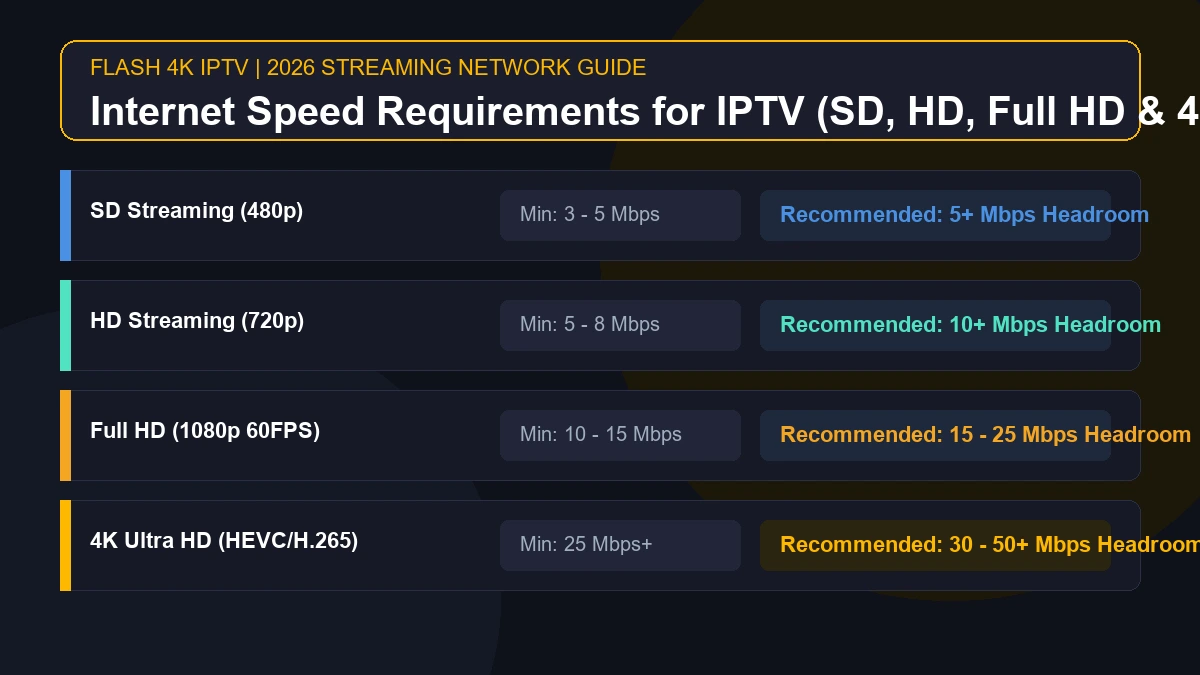
- Download speed: Ensure you have at least 25-50 Mbps available specifically for the device.
- Stability: Watch the speed test graph. Does it wildly fluctuate up and down?
- Latency (Ping): High latency delays the arrival of live video packets.
- Packet loss: If your connection is dropping packets, the video will inevitably freeze.
For more detailed information on connection requirements, read our guide on IPTV and Internet Speed.
4. Try an Ethernet Connection
If your device is connected via Wi-Fi, wireless interference is the number one suspect for a freezing stream.
Wi-Fi signals are easily disrupted by walls, microwaves, Bluetooth devices, and neighboring Wi-Fi networks. These micro-disruptions cause the video data to arrive in incomplete chunks, forcing the IPTV app to freeze while it waits for the missing pieces.
The Fix: Whenever possible, bypass Wi-Fi entirely. Run an Ethernet cable directly from your router to your Smart TV, [Android TV Box](/installation), or computer. A hardwired connection provides a significantly more consistent connection, less variability, and better overall stability.
If Ethernet is not practical, you can improve your Wi-Fi by:
- Moving the router closer to your streaming device.
- Connecting to the 5GHz Wi-Fi band instead of the crowded 2.4GHz band.
- Removing physical obstacles between the router and the TV.
5. Restart Your Router and Device
Sometimes, the simplest solution is the most effective. Your networking equipment and streaming devices are small computers that occasionally need their memory cleared.
Try this simple troubleshooting sequence:
- Stop the IPTV stream and close the application.
- Unplug your streaming device (Firestick, Smart TV, etc.) from the power source.
- Unplug your router and modem from the wall.
- Wait exactly 60 seconds.
- Plug the router back in and wait for the network to fully reconnect.
- Plug your streaming device back in and launch the IPTV app.
- Test the same channel again.
This process clears temporary cache files and forces your devices to establish a fresh, clean network connection.
6. Reduce Network Traffic
If your IPTV stream freezes only in the evenings or on weekends, network congestion is a likely culprit.
Your internet bandwidth is shared among all the devices in your home. If you are trying to stream a live football game while someone else is downloading a massive video game update, backing up photos to the cloud, streaming 4K Netflix, or running heavy torrents, your router will struggle to allocate enough bandwidth to the live TV feed.
The Fix: Pause all large downloads and limit heavy internet usage on other devices. Test the IPTV stream again to see if the freezing stops.
7. Test Multiple IPTV Channels
This is a critical diagnostic step to determine if the problem is local (your house) or remote (the provider).
If the channel you are watching freezes, immediately switch to:
- Another live channel in a completely different category.
- A Video on Demand (VOD) movie, if your service offers it.
- A channel streaming in a lower resolution (e.g., switch from 1080p to 720p).
The Diagnosis:
- If only one channel freezes: The issue is almost certainly related to that particular stream's source or the provider's server for that specific network.
- If many channels freeze: The problem is much more likely to be your internet, your device's performance, or a broader issue with your IPTV application.
8. Does IPTV Freeze Only in 4K?
Watching sports and movies in stunning Ultra HD is fantastic, but 4K streams place immense demands on your entire setup.
A 4K stream requires significantly more network bandwidth than a standard HD stream. Furthermore, the streaming device must possess a powerful processor to quickly decode the dense 4K video data.
If standard HD (1080p) channels work flawlessly but 4K streams repeatedly stutter, freeze, or cause your device to crash, the problem is a bottleneck. You must troubleshoot your connection stability, your device's hardware decoding capabilities, and network traffic. Older Smart TVs and budget streaming sticks often lack the processing power required for live 4K IPTV.
Stream 2026 NFL Games in 4K & 60FPS
Get instant access to over 50,000 live sports channels, 120,000+ movies & series, and 24/7 priority sports coverage across all your favorite devices.
9. Restart or Update Your IPTV App
Software bugs or corrupt cache data within your IPTV player can easily cause video playback to stall.
- Restart: Fully force-close the application from your device's settings menu, rather than just returning to the home screen. Reopen it to establish a fresh connection to the server.
- Clear Cache: If you are using an Android or Fire OS device, navigate to Settings > Applications > Manage Installed Applications, find your IPTV player, and select "Clear Cache." Do not clear data unless you are prepared to re-enter your login credentials.
- Update: Check your device's app store to ensure you are running the latest version of your IPTV player. Developers frequently release updates to fix playback bugs.
For detailed recommendations on different software, read our guide comparing IPTV vs Streaming Services.
10. Check Your Streaming Device
Not all streaming devices are created equal. As IPTV streams become higher quality, older hardware struggles to keep up.
Examine your device's current state:
- Device Age: Is your Smart TV processor five years old?
- Available Storage: Devices need a certain amount of free space to buffer video. Delete unused apps if your storage is nearly full.
- Background Apps: Are there dozens of apps running silently in the background consuming RAM?
The exact troubleshooting process varies by device, but ensuring your hardware is running efficiently is paramount to eliminating stuttering and freezing.
11. Close Unnecessary Apps
Some devices, particularly budget Android TV boxes and older Firesticks, experience severe performance degradation when their RAM (memory) is maxed out.
When too many applications are running simultaneously, the device simply doesn't have the resources left to smoothly decode a live 60fps sports stream. The Fix: Manually close unnecessary background applications, uninstall apps you no longer use, and restart the device to free up memory before a big game.
12. Check for Device Overheating
Excessive heat severely degrades electronic performance. When a processor gets too hot, it automatically slows itself down (thermal throttling) to prevent physical damage. This sudden drop in processing power will instantly cause your IPTV stream to stutter or freeze.
The Fix:
- Ensure your streaming device or Smart TV is adequately ventilated.
- Do not place Android boxes inside closed, unventilated media cabinets.
- If you use a streaming stick that plugs directly into the back of your TV, ensure it is not pinned against a hot wall.
- If the device feels excessively hot to the touch, unplug it and allow it to cool completely before testing again.
13. Review IPTV Player Settings
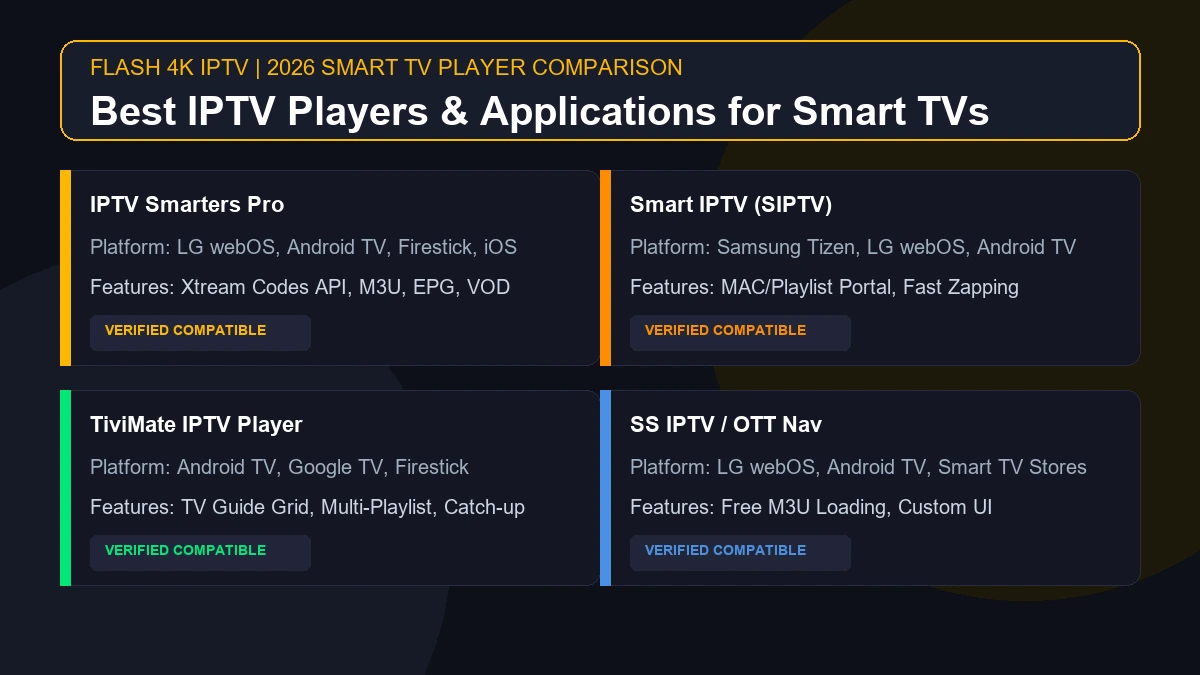
Your IPTV application is highly customizable. Depending on the player you use (such as TiviMate, Smarters, or XCIPTV), tweaking the playback settings can often resolve freezing issues.
Look for settings related to:
- Buffer Size: Increasing the buffer size forces the app to download more video in advance. This can help smooth out minor internet fluctuations, though it will increase the delay of the live broadcast slightly.
- Hardware Decoding: Toggle between Hardware (HW) and Software (SW) decoding. Some devices handle video processing better on different settings.
- Video Format: If your player supports changing the output format (like HLS vs MPEG-TS), testing an alternate format can sometimes stabilize the stream.
Note: Do not blindly change every setting at once. Change one setting, test the playback, and revert it if it does not help.
14. Could a VPN Be Causing IPTV Freezing?
A Virtual Private Network (VPN) encrypts your traffic and routes it through a remote server. While VPNs are excellent for privacy and bypassing ISP throttling, they can also introduce significant latency and reduce your overall connection speed.
If the VPN server you are connected to is overloaded or located on another continent, the live video data simply won't reach your device fast enough, resulting in freezing.
The Fix: If you are already using a VPN and experiencing freezing, temporarily disable it (where legally and technically appropriate) to test whether the VPN routing is the bottleneck. If the freezing stops, try connecting to a closer, less congested VPN server.
15. The IPTV Provider or Stream May Be the Problem
If you have optimized your internet, hardwired your connection, and verified your device is running perfectly, the freezing may not be your fault.
Not every freezing problem originates from the user's setup. The issue could be on the provider's side:
- Server Load: The IPTV provider's servers may be overwhelmed by too many users logging on simultaneously (very common during massive pay-per-view events).
- Stream Source Problems: The original broadcast feed that the provider is capturing may be glitching.
- Infrastructure Issues: Temporary network routing problems between your ISP and the IPTV servers.
If multiple devices in your home experience the exact same channel freezing while your internet connection remains perfectly stable on a speed test, a provider-side issue becomes the most plausible explanation.
16. When Should You Contact Your IPTV Provider?
It is appropriate to contact your IPTV provider's customer support when:
- Multiple channels in different categories freeze simultaneously.
- Your internet connection is fast and stable on all other applications (like YouTube or Netflix).
- Restarting your network and device does not resolve the issue.
- The problem persists consistently across multiple different devices.
- A specific, advertised live event stream remains entirely unavailable.
When you contact support, be helpful. Provide them with your device model, the IPTV app you are using, the exact affected channel, the time the problem occurred, and confirmation that your internet speed is sufficient. This information allows support technicians to diagnose server-side problems much faster.
17. Quick Fix Checklist
Bookmark this section. Next time your IPTV freezes during a crucial moment, follow this rapid sequence:
- Test internet connection: Confirm your speed is stable.
- Test another channel: Determine if the issue is isolated to one stream.
- Restart IPTV app: Force close and reopen the application.
- Reduce network traffic: Pause background downloads on other devices.
- Restart device: Unplug your streaming device and plug it back in.
- Restart router: Clear your network cache.
- Try Ethernet: Bypass Wi-Fi interference if possible.
- Check app settings: Increase the buffer size in your player.
- Update the app/device: Ensure you are running the latest software.
- Test another device: See if a smartphone or computer on the same network works.
- Contact provider support: If the issue persists across all tests, submit a ticket.
18. Is the Problem Your Internet, Device, App, or Service?
Use this quick diagnostic table to point you in the right direction:
| Symptom | More Likely Area to Check |
|---|---|
| Every channel freezes | Internet stability / Device performance / Provider outage |
| Only one channel freezes | Specific stream source / Channel link |
| IPTV freezes only on Wi-Fi | Wireless interference / Network signal strength |
| IPTV works perfectly on your phone, but not the TV | Original TV device performance / TV App |
| IPTV freezes on all your devices at once | Home Network / Provider servers |
| Only 4K channels freeze | Network bandwidth / Device decoding power |
| The IPTV app crashes entirely | App software / Device memory |
| Other apps (Netflix, YouTube) also struggle | Internet Service Provider (ISP) / Router |
19. Troubleshooting IPTV with Flash4K IPTV
If you are tired of constant freezing and looking for a more stable entertainment experience, the Flash4K IPTV service is built to minimize these exact frustrations.
Our platform is engineered with modern streaming demands in mind, designed to deliver high-quality live television and seamless sports coverage. We always recommend pairing Flash4K with a strong, hardwired internet connection for the ultimate cord-cutting experience.
You can explore our subscription plans to find the right package for your household, review our comprehensive channel directory, or check out our installation guide to ensure your device is properly configured. If you encounter any technical hurdles, our dedicated support team is available to assist you.