IPTV Buffering After a Few Minutes: Causes and Solutions
It is a highly specific, yet incredibly common frustration: you open your IPTV application, select a live channel or movie, and everything works perfectly. The picture is crisp, the audio is in sync, and the stream loads instantly. But then, after 5, 10, or 15 minutes of flawless playback, the dreaded loading circle appears. The video pauses, stutters, and begins to buffer repeatedly.
Why does an IPTV stream that clearly has the capacity to work initially suddenly degrade over time?
If your IPTV works normally at startup but begins buffering after a few minutes, this distinct pattern is actually a very useful diagnostic clue. It usually indicates that the issue is not a complete outage or a completely incompatible setup. Instead, it suggests a problem related to changing network conditions, increasing device load, application behavior, or fluctuating provider stability over time.
In this guide, we will explore exactly why IPTV buffering occurs after a delayed period and provide practical, step-by-step solutions to stabilize your stream permanently.
Stream 2026 NFL Games in 4K & 60FPS
Get instant access to over 50,000 live sports channels, 120,000+ movies & series, and 24/7 priority sports coverage across all your favorite devices.
1. Why Does IPTV Work at First and Then Start Buffering?
To fix this specific issue, you must understand the difference between initial playback and sustained playback stability.
When you first launch an IPTV stream, your application connects to the provider's server and quickly downloads a small "buffer" of video data. If your initial internet connection is strong, the video will start playing smoothly.
However, live streaming requires a continuous, uninterrupted delivery of data. If your IPTV starts buffering after several minutes, it means the application is playing the video faster than new data is arriving. The initial buffer runs out (depletion), forcing the video to pause while it waits for the connection to catch up.
This delayed failure can be caused by:
- Temporary network stability giving way to fluctuations.
- Other devices in your home suddenly increasing their network usage (congestion).
- Your streaming device overheating or running out of memory over time.
- Wi-Fi interference disrupting the sustained data transfer.
- The IPTV provider's server becoming congested as more users tune in to a specific event.
2. Does IPTV Start Buffering at the Same Time Every Session?
Before changing any settings, pay attention to the timing. The exact moment the buffering begins can point you in the right direction.
Buffering after roughly the same number of minutes (e.g., exactly 10 minutes every time):
This pattern can indicate a device or software limitation. It makes it worth checking your streaming device's available memory, the IPTV application's cache settings, or your router's lease configurations. It suggests a systematic bottleneck rather than a random network drop.
Buffering at random times after startup:
This pattern is much more indicative of environmental factors. It points toward Wi-Fi instability, sudden network congestion (someone else in the house starting a download), ISP throttling, or fluctuations on the provider's server.
3. Test Internet Stability, Not Just Speed
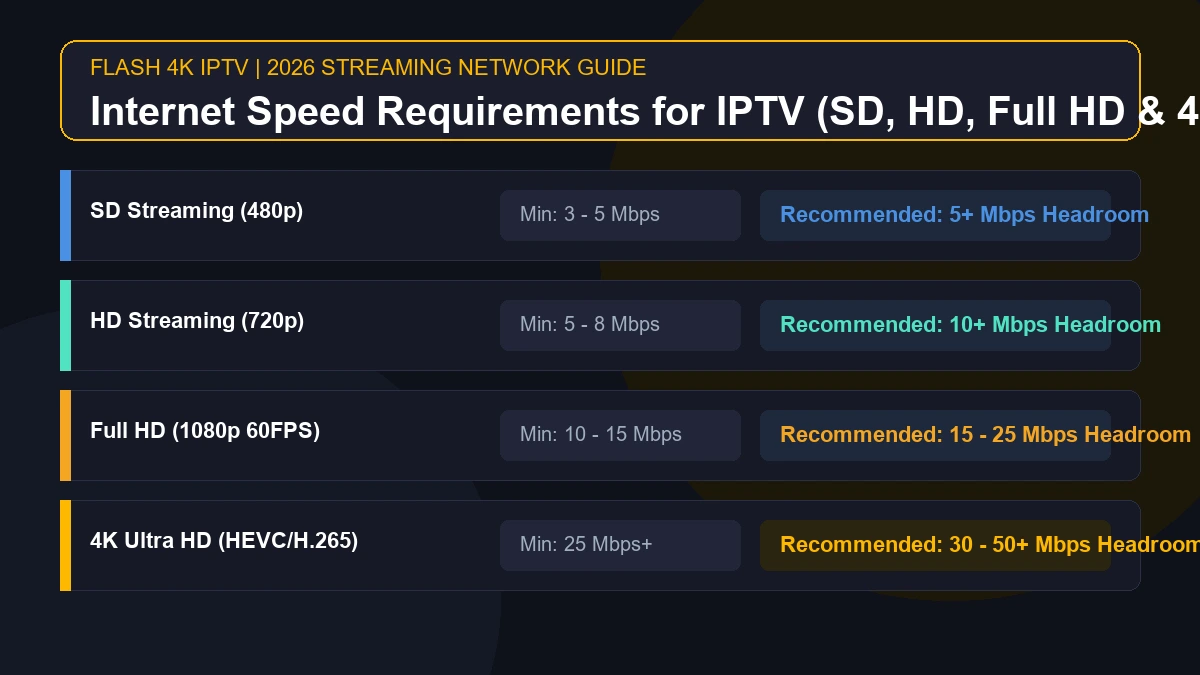
The most common reason a stream degrades over time is an unstable internet connection. Advertised internet speed (e.g., 500 Mbps) is only one part of streaming performance.
You might run a speed test and see a high number, but live IPTV relies heavily on continuous stability and low latency. If your connection drops packets of data every few minutes, your overall speed test might still look fine, but your live video will inevitably stutter and buffer when those missing packets fail to arrive.
The Fix: Run an extended speed test or a ping test on the exact device experiencing the issue. Look for massive spikes in latency or dropped packets. For a detailed breakdown of bandwidth requirements, read our guide on what internet speed you need for IPTV.
4. Try Ethernet Instead of Wi-Fi
Wi-Fi is convenient, but it is highly susceptible to environmental changes. A stream might start perfectly when the airwaves are clear, but begin buffering a few minutes later when a neighbor's router changes channels, a microwave is turned on, or a Bluetooth device interferes.
The Fix: As a diagnostic test, connect your streaming device directly to your router using an Ethernet cable.
If the IPTV works consistently over Ethernet without buffering, you have successfully isolated the problem: your Wi-Fi is the culprit. You must investigate the distance from the router, wireless congestion, or consider upgrading to a mesh network.
5. Check What Other Devices Are Using the Network
Your network usage can change drastically while you are watching TV. The stream might start perfectly because you are the only one using the internet. Ten minutes later, buffering begins.
Why? Because another device on your network initiated a heavy background task. Examples include:
- A smartphone backing up photos to the cloud.
- A gaming console downloading a massive software update.
- A computer running a large file transfer or torrent.
- Another family member starting a 4K Netflix stream in the next room.
The Fix: Temporarily disconnect or pause downloads on other devices. If the IPTV playback suddenly stabilizes, your buffering was caused by local network congestion.
6. Test Another IPTV Channel
This is an essential diagnostic step. When the buffering begins, do not just stare at the loading circle. Switch to a completely different live channel, preferably in another category or country. You can also test a Video on Demand (VOD) movie if available.
The Diagnosis:
- If only one channel buffers: The specific stream, or the server hosting that specific channel, is likely experiencing issues.
- If many channels begin buffering: The problem is much broader, meaning you must investigate your network, your device, or a major provider-side outage.
7. Test IPTV on Another Device
One of the best ways to isolate a delayed buffering problem is to test the exact same channel on a different piece of hardware connected to the same network.
For example, if your IPTV buffers on your main Smart TV after ten minutes, but plays flawlessly for an hour on your smartphone or tablet, the issue is highly likely related to the TV itself. The TV might have a weak Wi-Fi chip, an outdated processor, or a buggy IPTV app.
If the stream buffers on both devices after a few minutes, you can confidently rule out the hardware and focus your troubleshooting on your router, your ISP, or the IPTV provider.
Stream 2026 NFL Games in 4K & 60FPS
Get instant access to over 50,000 live sports channels, 120,000+ movies & series, and 24/7 priority sports coverage across all your favorite devices.
8. Check if Your Device Is Overheating
Prolonged video playback is a demanding task. This can expose thermal or performance problems that are simply not visible immediately after startup.
When a Smart TV, Fire TV stick, or Android TV Box processes high-definition live video, it generates heat. If the device is located in an enclosed media cabinet or pinned against the warm back panel of a television, it can overheat after a few minutes of playback.
When a processor overheats, it protects itself by slowing down (thermal throttling). This sudden drop in processing power will cause your IPTV app to become unstable, stutter, and buffer.
The Fix:
- Ensure your streaming device has good ventilation.
- Avoid placing devices in enclosed, hot spaces.
- Keep ventilation grills clear of dust.
- Unplug the device, allow it to cool completely, and test it again in a well-ventilated area.
9. Check Storage and Background Processes
Streaming devices possess limited Random Access Memory (RAM) and internal storage. As an IPTV application runs, it continually writes temporary video data to the device's cache.
If your device is nearly full of unused apps, or if you have dozens of background applications running simultaneously, the device will eventually run out of memory. The stream will play perfectly at first, but once the memory hits capacity after several minutes, the video will begin to buffer heavily as the device struggles to manage the data.
The Fix: Restart your device to clear the active RAM. Uninstall unnecessary applications to free up storage space. Close any heavy background processes before launching your IPTV player.
10. Restart or Reopen the IPTV App
Sometimes the application itself develops a memory leak or a desynchronization issue during sustained playback.
Try this practical sequence:
- Stop playback.
- Fully close the IPTV application (do not just return to the home screen; force stop it in the settings).
- Reopen the application.
- Start the exact same channel.
- Monitor playback for several minutes.
If restarting the app temporarily fixes the issue every time, the application is struggling to manage its cache over long sessions.
11. Clear the IPTV App Cache
Building on the previous step, some platforms allow applications to store temporary data (cache) locally. Over time, a corrupt cache can cause delayed buffering.
If your device supports it (like Fire OS or Android TV):
- Navigate to your device's Settings > Applications.
- Find your specific IPTV player.
- Select Clear Cache. (Do not select Clear Data unless you are prepared to re-enter your playlist URL and login credentials).
- Restart the application and test playback again.
12. Check the Stream Quality
Higher-resolution streams require significantly more network capacity and sustained device resources.
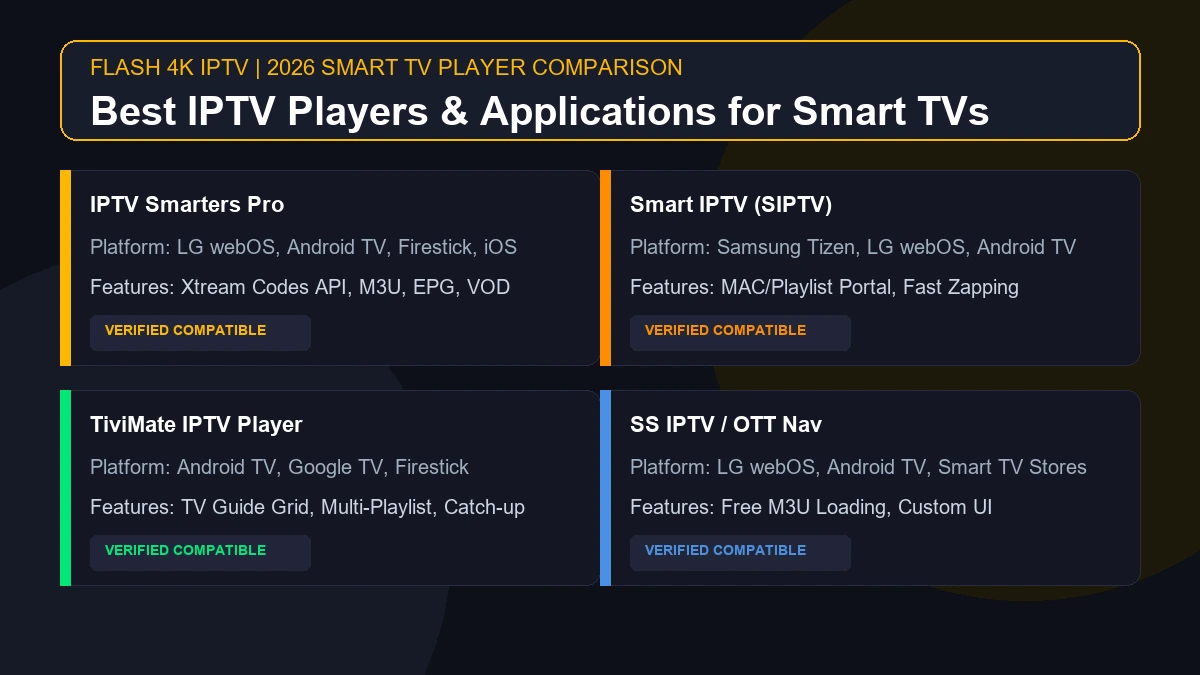
Compare the performance of different resolutions. If a standard SD or HD channel plays perfectly for hours, but a Full HD (1080p) or 4K channel repeatedly buffers after five minutes, your setup is hitting a bottleneck.
Investigate:
- Is your network stability strong enough to sustain 25+ Mbps continuously?
- Does your streaming device possess the hardware decoding capability for heavy bitrates?
- Is your Wi-Fi quality degrading under sustained load?
13. Why Does IPTV Buffer After a Few Minutes in 4K?
If you are experiencing delayed buffering specifically on ultra-high-definition channels, it is a demanding scenario.
4K streaming places immense demands on bandwidth, sustained connection stability, device decoding, and the streaming infrastructure itself. A connection can often handle a 4K stream initially, but the moment network conditions fluctuate slightly, the massive data requirement becomes too much, and the stream crashes into a buffering state.
If you regularly watch 4K content, a hardwired Ethernet connection and a premium streaming device (like an Nvidia Shield or Apple TV 4K) are strongly recommended.
14. Restart and Check Your Router
Just like your streaming device, your router is a computer that handles millions of data packets. Over time, routers can experience temporary performance degradation or memory issues that cause connection drops during heavy, sustained video streaming.
The Fix:
- Unplug your router from the power source for 60 seconds.
- Plug it back in and allow it to fully reboot.
- Ensure the router is placed in an open area, free from severe obstruction and adequately ventilated.
- Test the IPTV connection again.
15. Check Whether a VPN Is Affecting Playback
If you use a Virtual Private Network (VPN) while streaming, it alters the path your internet traffic takes.
VPN routing can sometimes introduce additional latency, reduced throughput, or server congestion. The VPN server might handle the initial connection well, but if that specific remote server becomes congested with other users after a few minutes, your stream will suffer.
The Fix: If you are legally and technically permitted to do so in your region, temporarily disable your VPN to isolate the cause. If the buffering stops, the VPN server was the bottleneck. Try connecting to a different, closer VPN server.
16. Could Your Internet Provider Be Causing the Problem?
Internet performance provided by your ISP can fluctuate drastically, particularly during peak evening hours (usually 7 PM to 11 PM).
Local neighborhood congestion, routing problems, or temporary ISP throttling can severely impact live video. If your IPTV starts buffering, check if other internet services in your home also become slow or unstable around the same time. If web pages load slowly and YouTube buffers simultaneously, your overall network connection is the root cause.
17. Could the IPTV Service Be the Problem?
Not every buffering issue originates in your living room. The IPTV provider's servers may be the problem.
Provider-side issues include overloaded servers, specific stream source instability, or network infrastructure problems between the datacenter and your ISP.
Important Diagnostic Test: If the exact same channel buffers repeatedly across multiple different devices, while connected to a verified stable network, across different playback sessions—the provider or that specific stream becomes much more worth investigating.
For more context on general service failures, read our guide on what to do when IPTV is not working. (Note: Freezing and buffering are related but not identical symptoms, though they often share root causes).
18. When Should You Contact Your IPTV Provider?
It is appropriate to contact your IPTV provider's support team when:
- Multiple channels repeatedly buffer after a few minutes of play.
- Your internet connection appears completely stable on all other streaming services.
- The issue occurs consistently across multiple compatible devices in your home.
- Restarting your router, device, and application does not resolve the problem.
- The problem persists over several days.
When submitting a support ticket, be highly specific. Tell them your device model, your IPTV application, the affected channel, the approximate time the buffering starts, your connection type, and whether a VPN is being used. This detail allows technicians to diagnose server-side problems much faster.
Quick IPTV Buffering Fix Checklist
Bookmark this numbered list for the next time your stream starts buffering mid-game:
- Test internet stability: Ensure your connection isn't dropping packets.
- Restart the IPTV app: Force close to clear temporary issues.
- Restart the streaming device: Free up RAM and processing power.
- Restart the router: Clear network caching issues.
- Reduce network traffic: Pause large background downloads.
- Test another IPTV channel: Isolate if it is a single stream or the whole service.
- Test another device: Rule out hardware failure on your main TV.
- Try Ethernet: Bypass Wi-Fi interference immediately.
- Check device temperature: Ensure your hardware isn't overheating.
- Check storage and background apps: Free up internal memory.
- Test a lower stream quality: See if 1080p works better than 4K.
- Check VPN effects: Try a different server location.
- Determine the scope: Find out if the issue affects one stream or many.
- Contact the provider: If all local tests pass, request support.
What the Timing of the Buffering Can Tell You
Use this quick reference table to guide your investigation:
| What happens | What to investigate |
|---|---|
| IPTV works for a few minutes, then all channels buffer | Network, device, app, or provider |
| Only one specific channel buffers | Specific stream/channel source |
| Buffering happens only on Wi-Fi | Wi-Fi interference / network stability |
| Buffering disappears completely on Ethernet | Wireless connection quality |
| Only 4K channels buffer | Network bandwidth / device decoding power / stream bitrate |
| Buffering happens on one device (e.g., TV) | Device hardware / app / configuration |
| Buffering happens on several devices simultaneously | Home network / provider infrastructure |
| Other internet services also slow down | Internet Service Provider (ISP) / router |
| Buffering begins when household usage increases | Local network congestion |
Troubleshooting IPTV with Flash4K IPTV
When IPTV works initially and then starts buffering, it is crucial to diagnose the problem systematically: Internet → Wi-Fi/Ethernet → Network traffic → Channel → Device → App → Stream quality → Provider.
If you have optimized your home setup but continue to experience severe buffering from budget providers, it may be time to upgrade your service.
The Flash4K IPTV service is engineered to provide premium stability for live television enthusiasts. We focus on delivering high-quality, reliable streams designed to perform consistently over long viewing sessions.
We encourage you to review our subscription plans to find an option that fits your needs, explore our extensive channel directory, or consult our FAQ for more detailed technical answers. If you are ready to set up your device, our devices and installation guide will get you started, and our professional contact support team is always available to help ensure your viewing experience is as smooth as possible.